User guides · For J Solutions client companies
Client guide
How your company's people use the J Solutions Client Portal to get documents from J Solutions, send payroll each pay period, and follow new-hire paperwork. The portal works in English and Spanish. Every screen here is the real portal, shown with fictional demo data.
All 20 steps
Getting started · Step 1 of 20
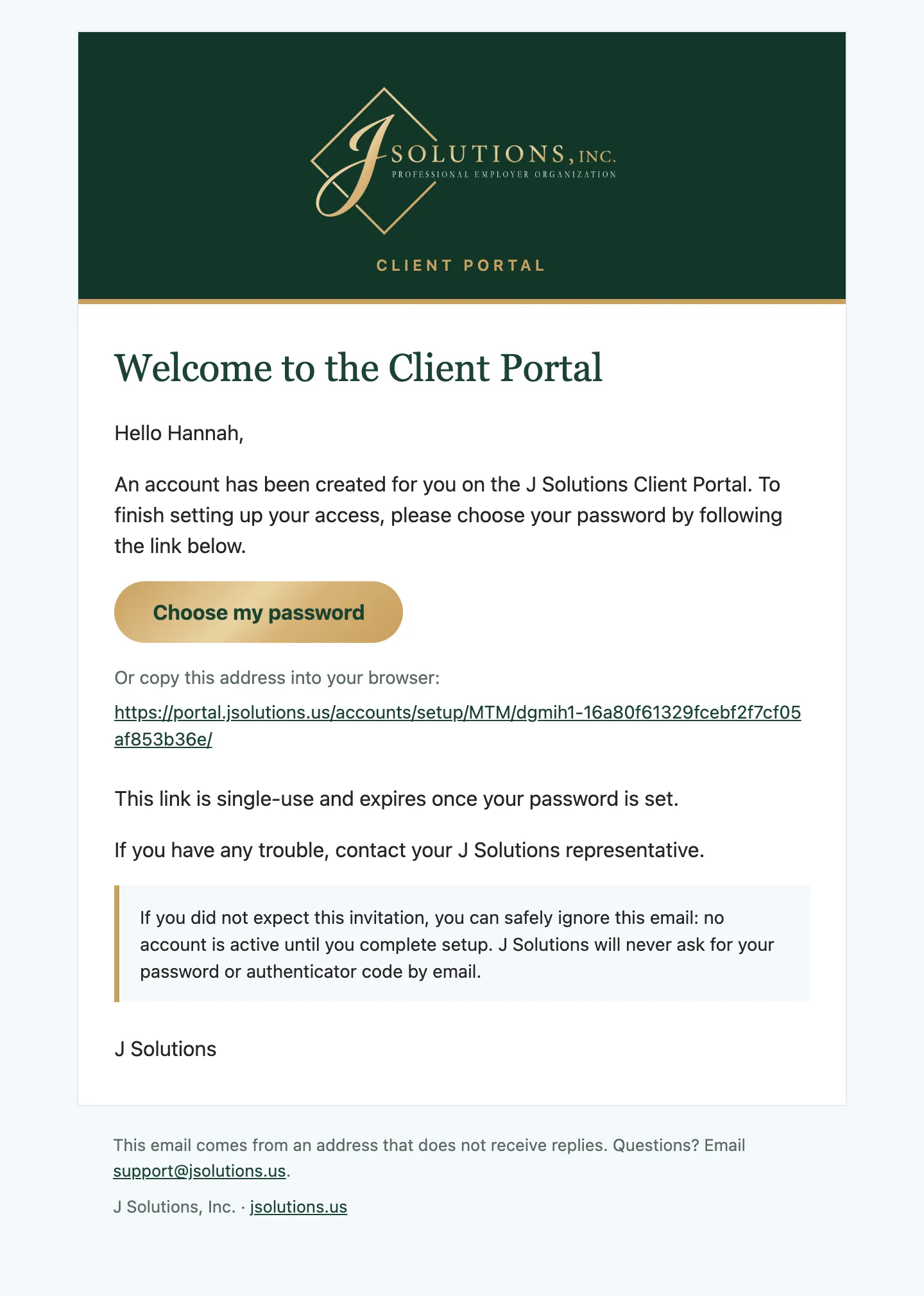
Your invitation email
J Solutions sets up your account, and the portal emails you from noreply@jsolutions.us with the subject "Set up your J Solutions Client Portal password". It is written in the language J Solutions chose for you.
- Click Choose my password.
- The link works once. If it has expired, ask J Solutions to send a new one.
- That address does not read replies. Questions go to support@jsolutions.us.
Good to know: J Solutions will never ask for your password or two-step sign-in code by email.
Getting started · Step 2 of 20
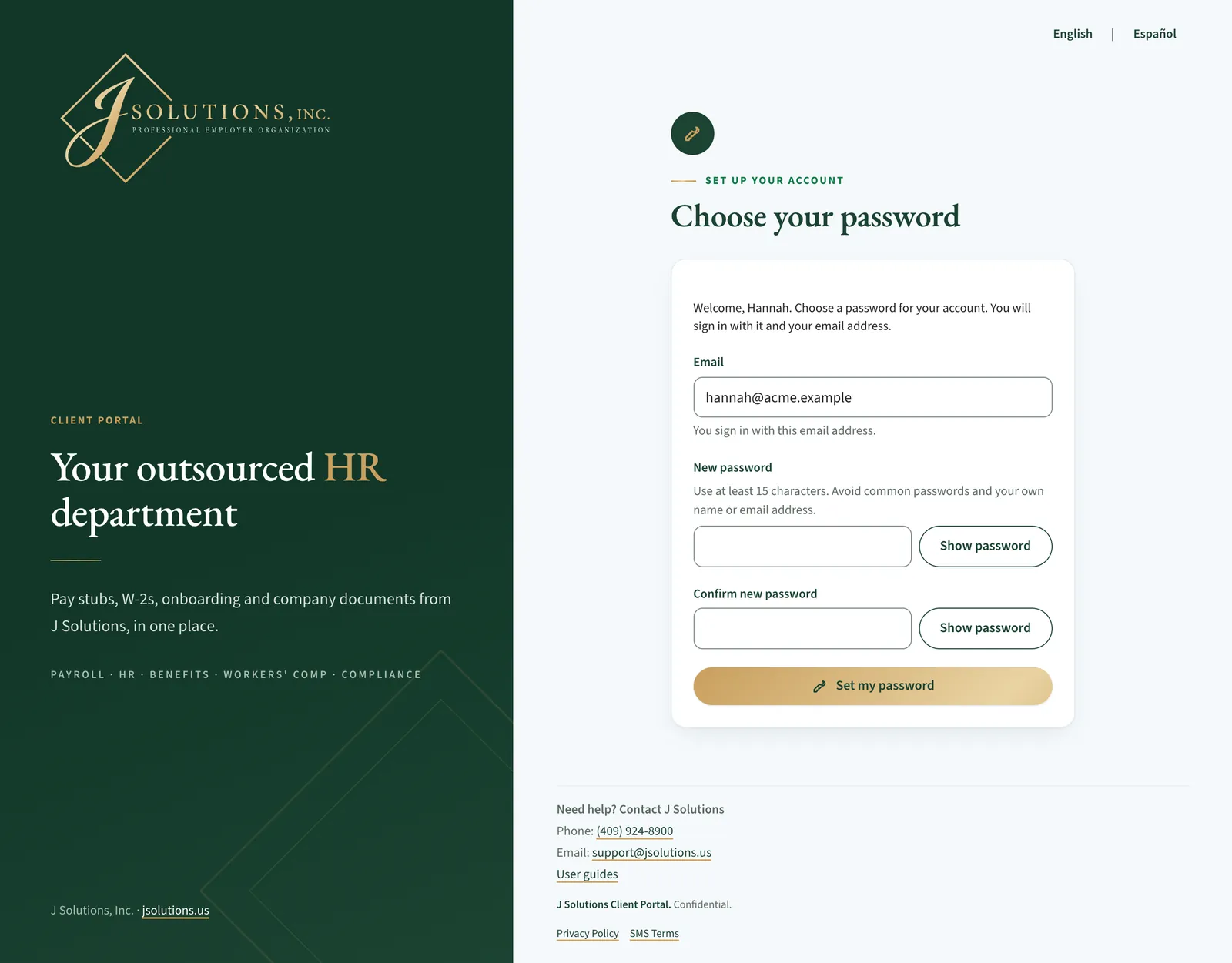
Choose your password
The page shows the email address you will sign in with. Pick a password you do not use anywhere else.
- Use at least 15 characters. Avoid common passwords and your own name or email address. A few unrelated words work well.
- Type it in New password and again in Confirm new password, then click Set my password.
- On the next page, click Sign in.
Good to know: If something needs fixing, a box headed There is a problem at the top says what, with a link to the field.
Getting started · Step 3 of 20
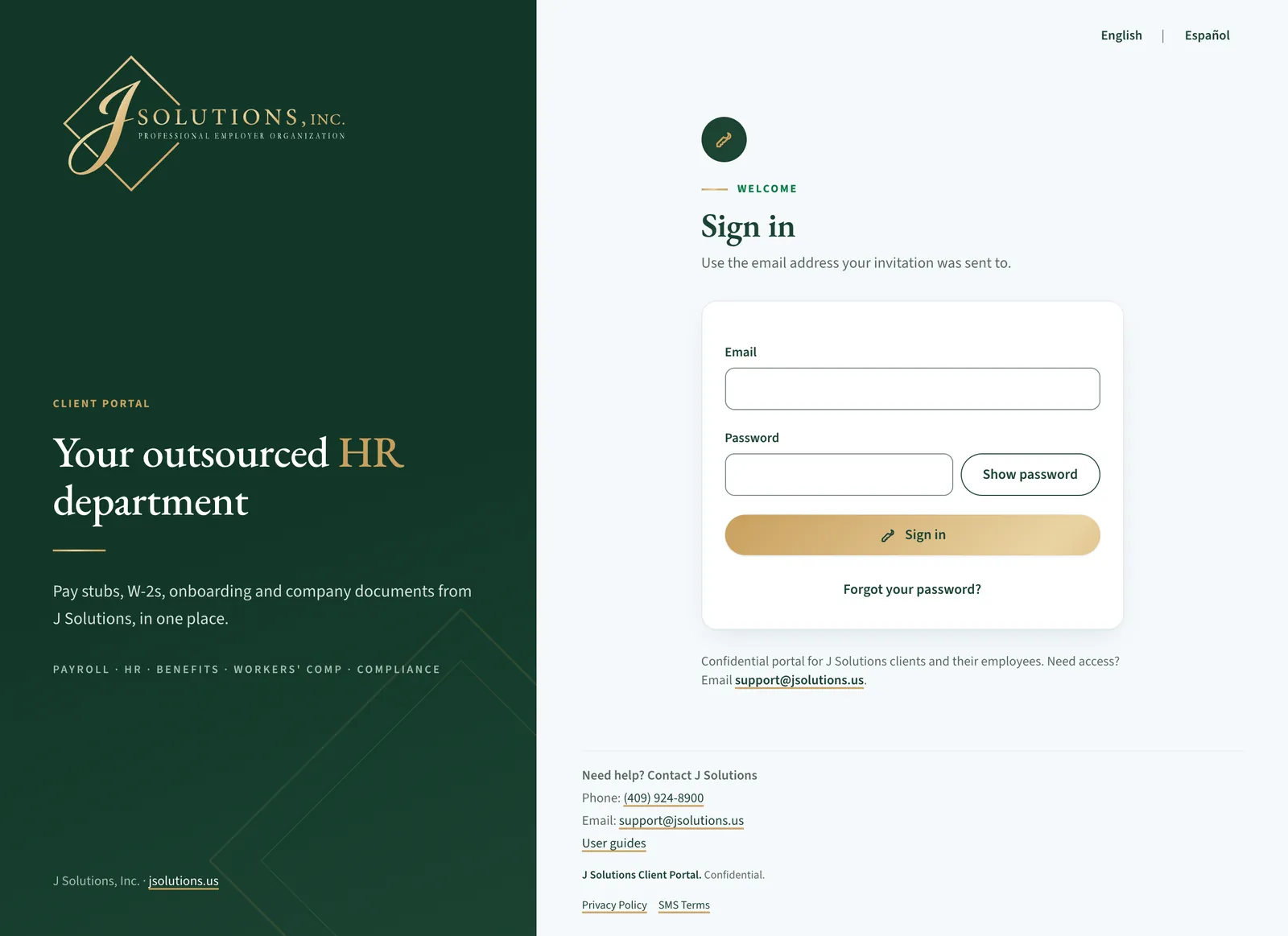
Signing in
From now on, go to https://portal.jsolutions.us and sign in with your email and password.
- Bookmark the page so you always land on the real portal. Check that the address starts with https://portal.jsolutions.us.
- Five wrong passwords in a row pause signing in from that connection for about an hour, to keep guessers out.
Getting started · Step 4 of 20
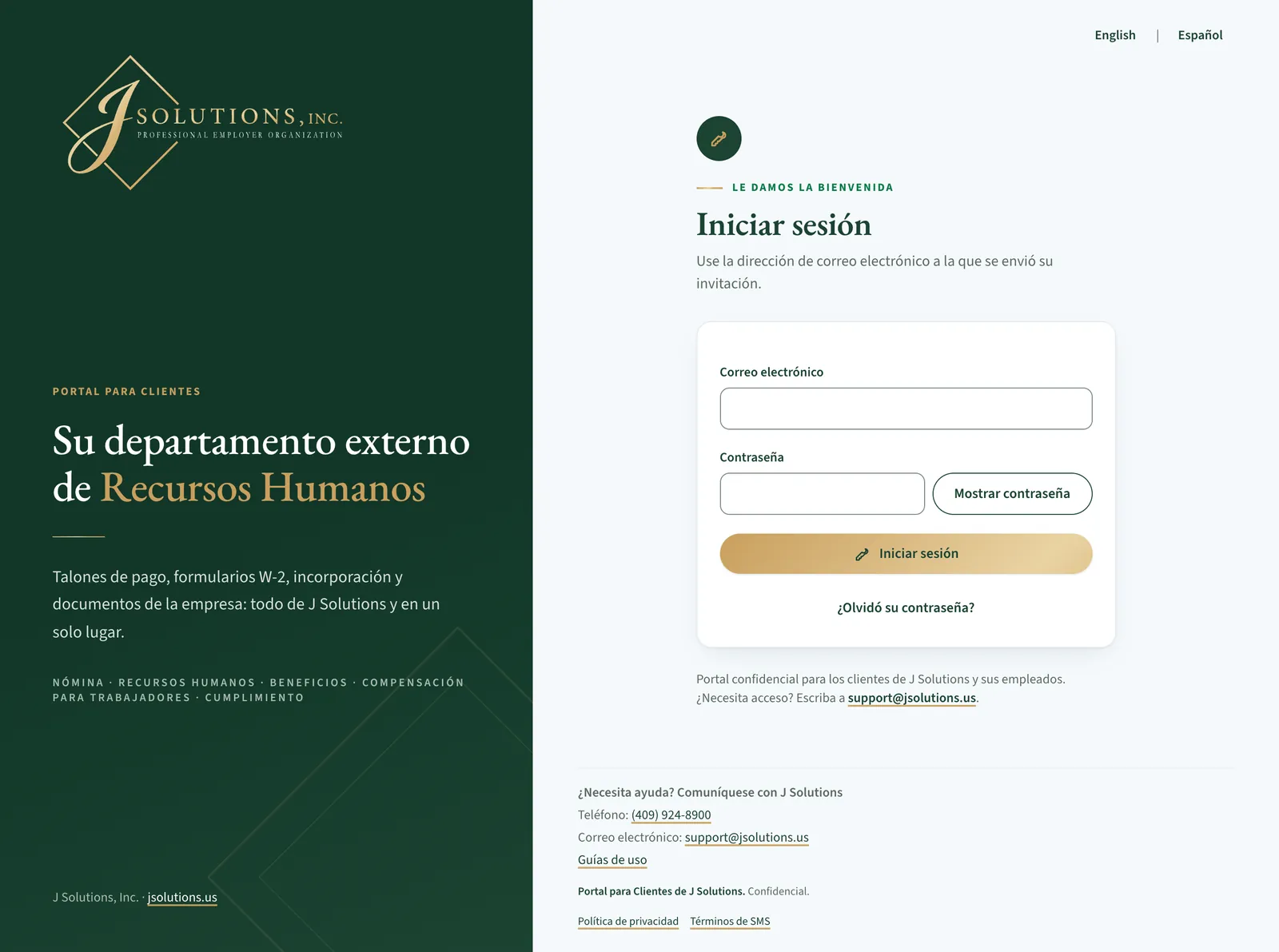
English or Español
The sign-in page has an English / Español switch at the top right. Click Español to see the pages before sign-in in Spanish.
- Once you sign in, the portal uses the language saved on your account. You choose it the first time you sign in, and can change it any time in Account settings.
- Your emails from the portal come in that language too.
Getting started · Step 5 of 20
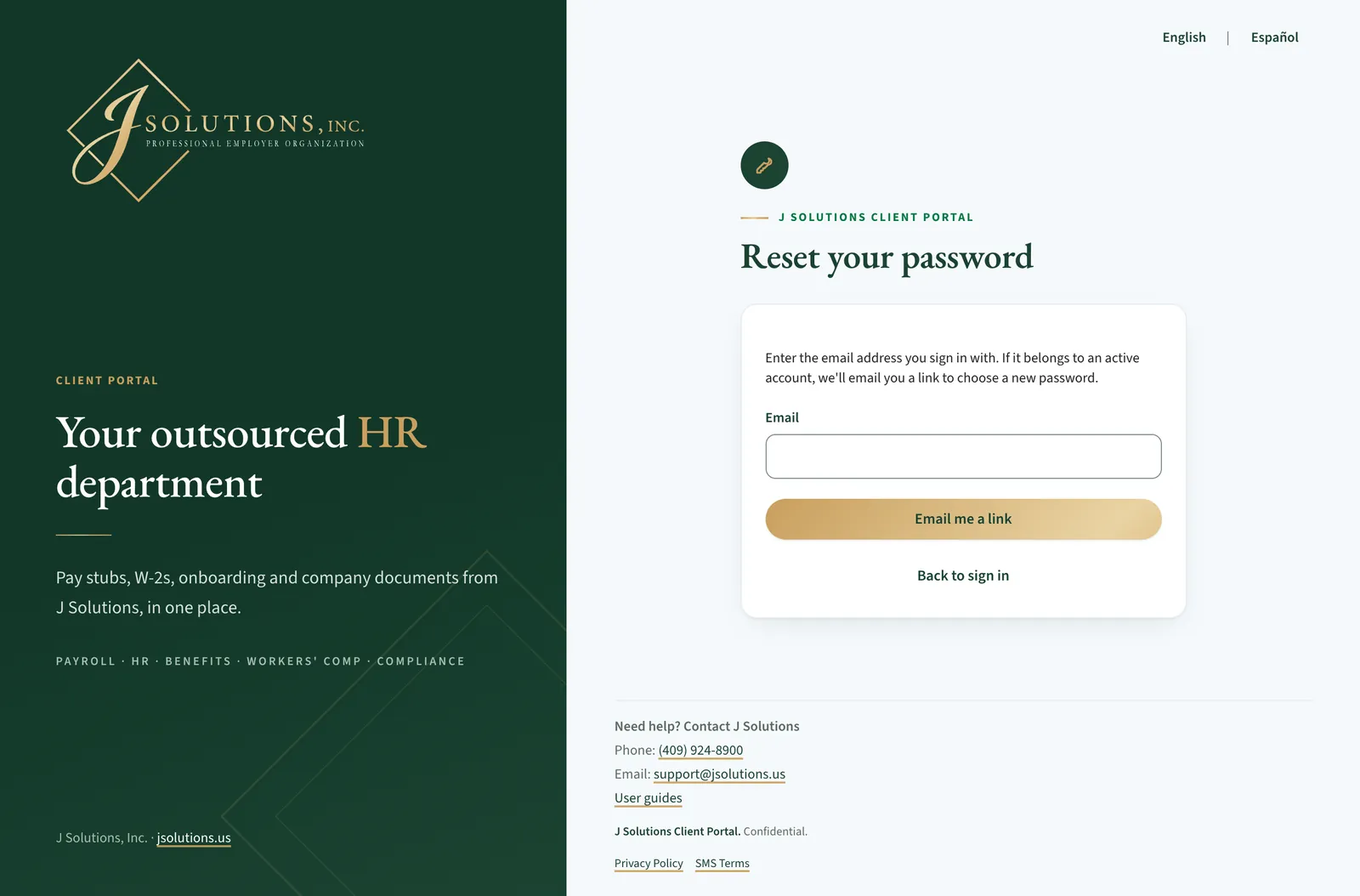
Forgot your password?
Click Forgot your password? on the sign-in page.
- Enter the email you sign in with and click Email me a link.
- If it belongs to an active account, a link to choose a new password arrives in a few minutes. It works once and expires after a few days. Check your spam folder too.
Getting started · Step 6 of 20
The first time you sign in
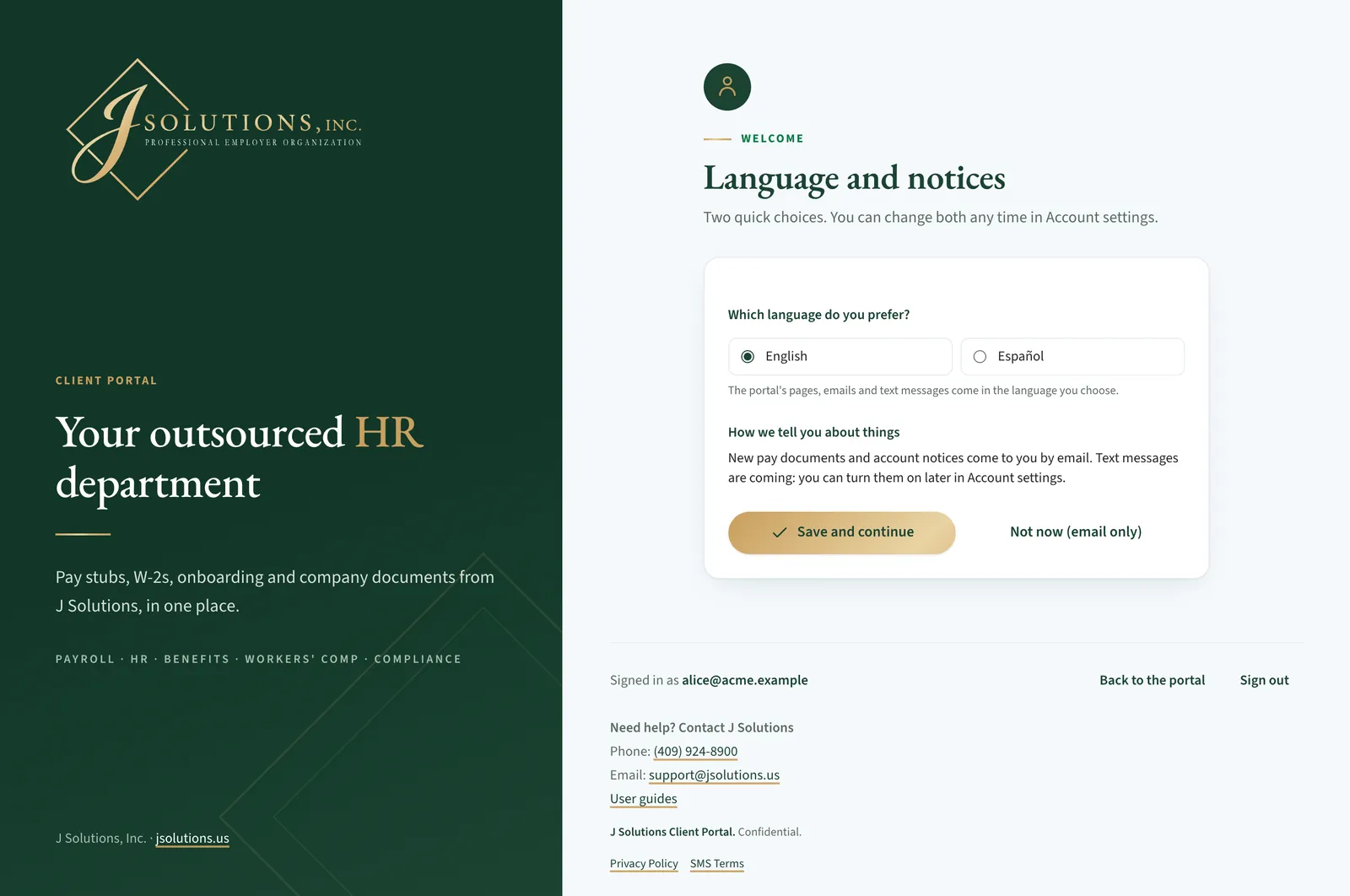
The first time you sign in, the portal asks once: Which language do you prefer? English or Español.
- The portal's pages and emails come in the language you choose.
- New pay documents and account notices come to you by email. Text messages are coming later; you will be able to turn them on in Account settings then.
- Click Save and continue, or Not now (email only) to keep things as they are. Either way, this step does not come back until text messages are available.
Good to know: You can change your language any time in Account settings.
Getting started · Step 7 of 20
A quick tour
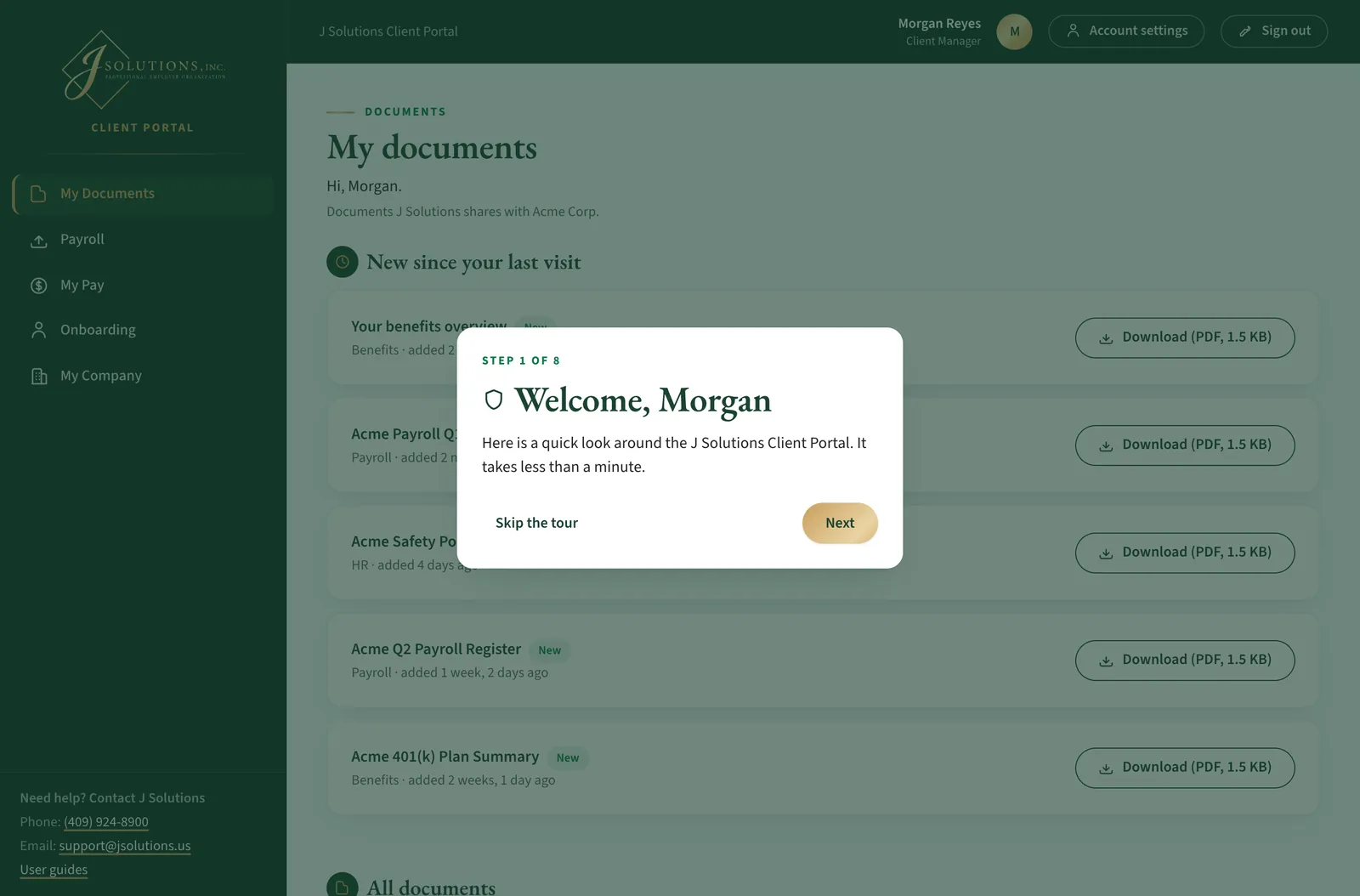
On your first page, a short tour shows what each part of your menu is for. It shows only the parts you have, one card at a time.
- Click Next and Back to move between cards, and Finish on the last one.
- Skip the tour closes it. Either way, it does not open by itself again.
- To see it again, go to Account settings and click Take the tour again.
Your documents · Step 8 of 20
My Documents
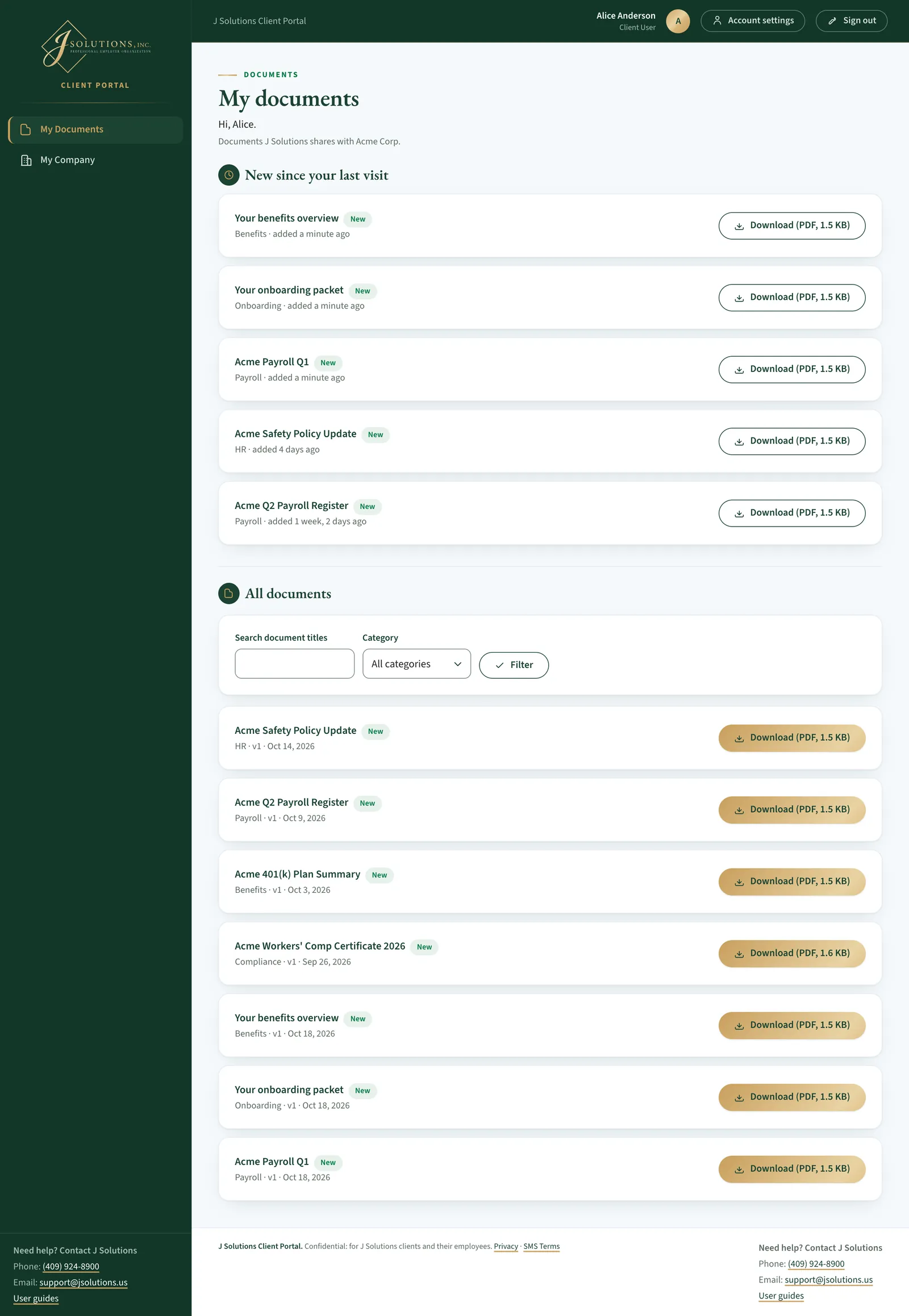
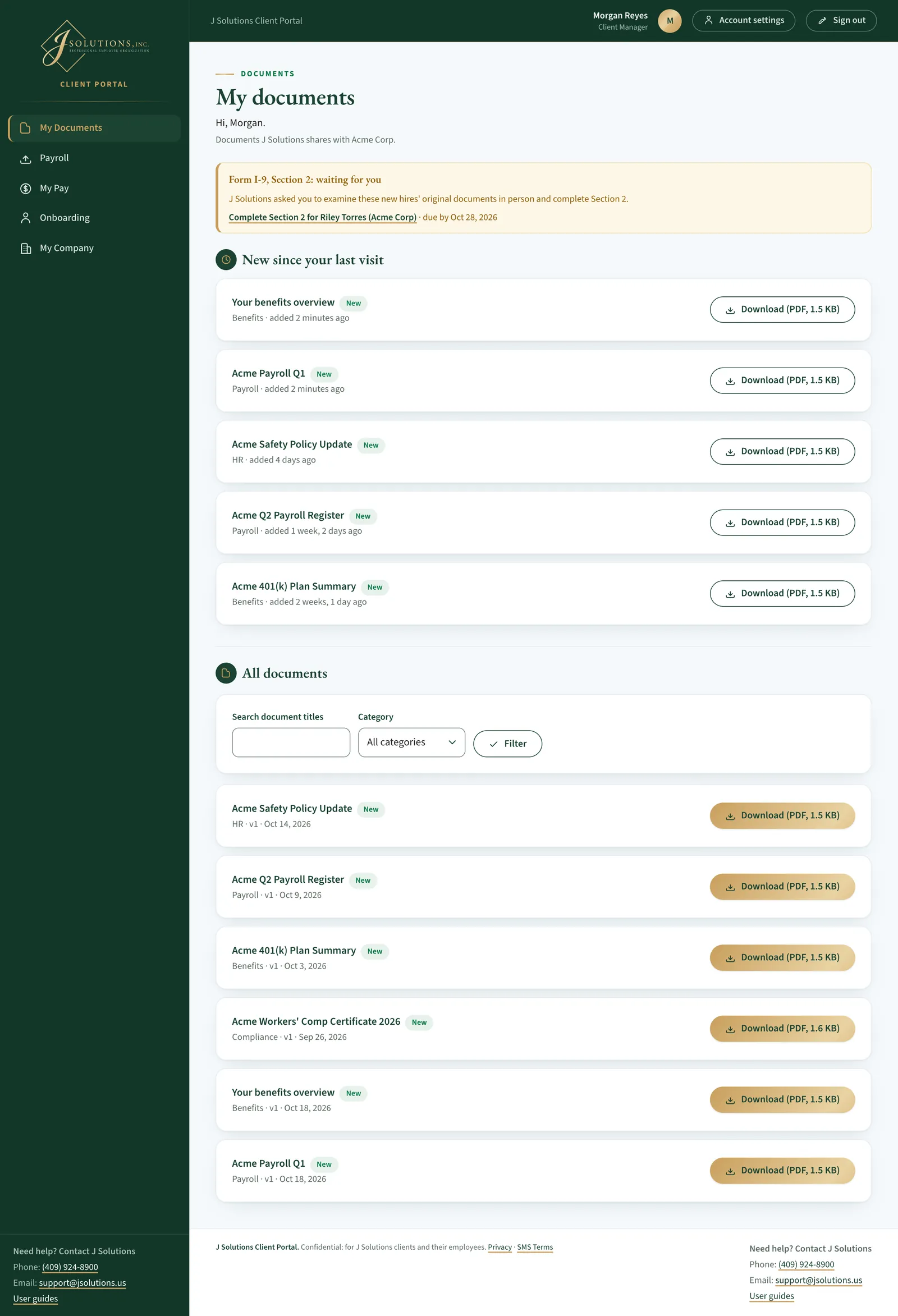
This is your home page: every document J Solutions has shared with you or your company.
- New since your last visit lists documents added since you last signed in that you have not opened yet. Opening one clears it.
- Expiring soon, when there are any, shows documents that expire within 30 days. Recently accessed by you keeps the files you opened last close at hand.
- Under All documents, use Search document titles or pick a Category, then click Filter. If nothing matches, Clear filters shows everything again.
- Click Download to save a copy. The button shows the file type and size.
Your documents · Step 9 of 20
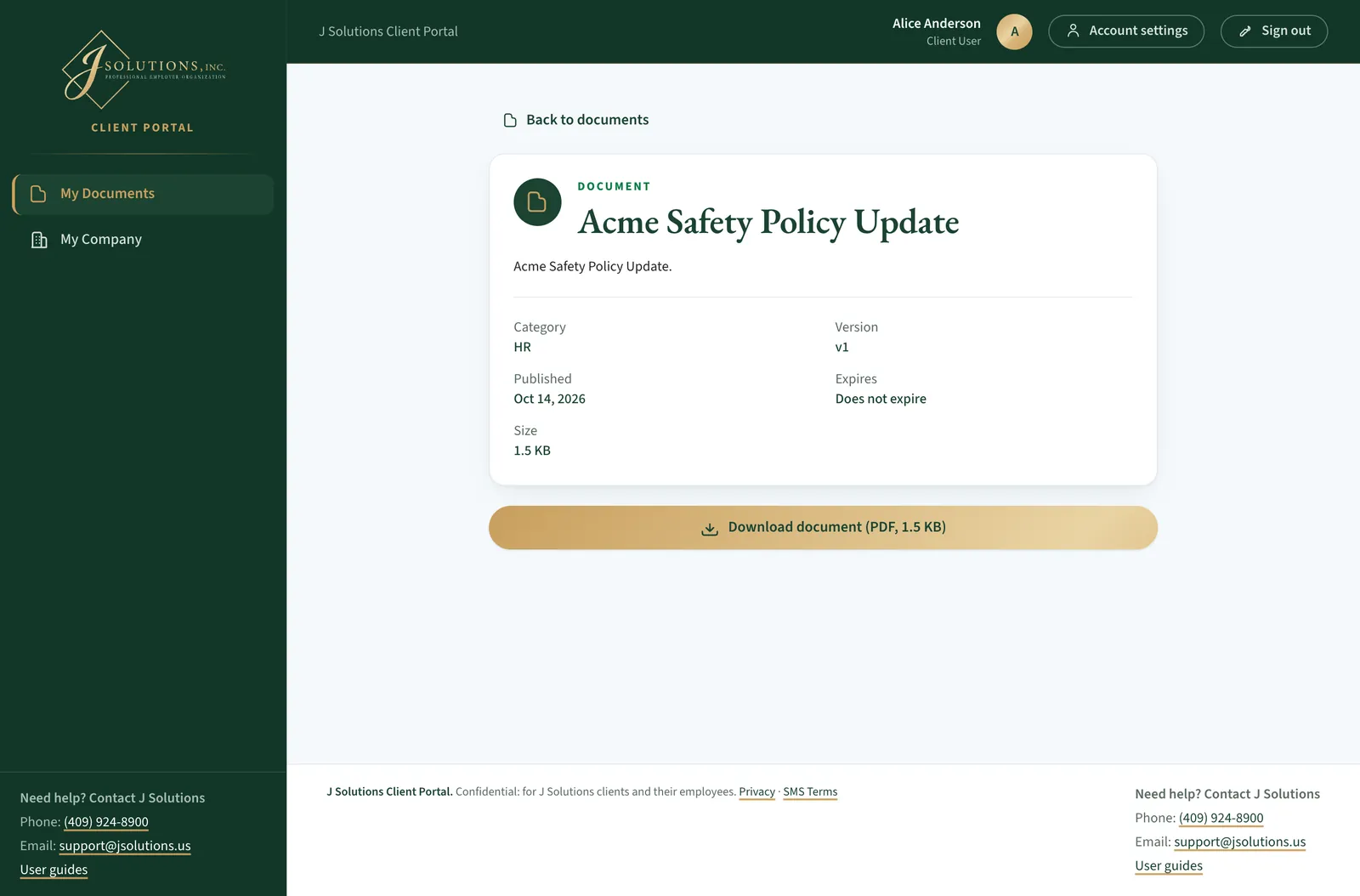
A document's details
Click a document's title to see its category, version, when it was published, when it expires and its size.
- Click Download document to save it.
- When J Solutions posts a newer version, you always get the latest one.
- Back to documents returns to your list, with your search and filters kept.
Your documents · Step 10 of 20
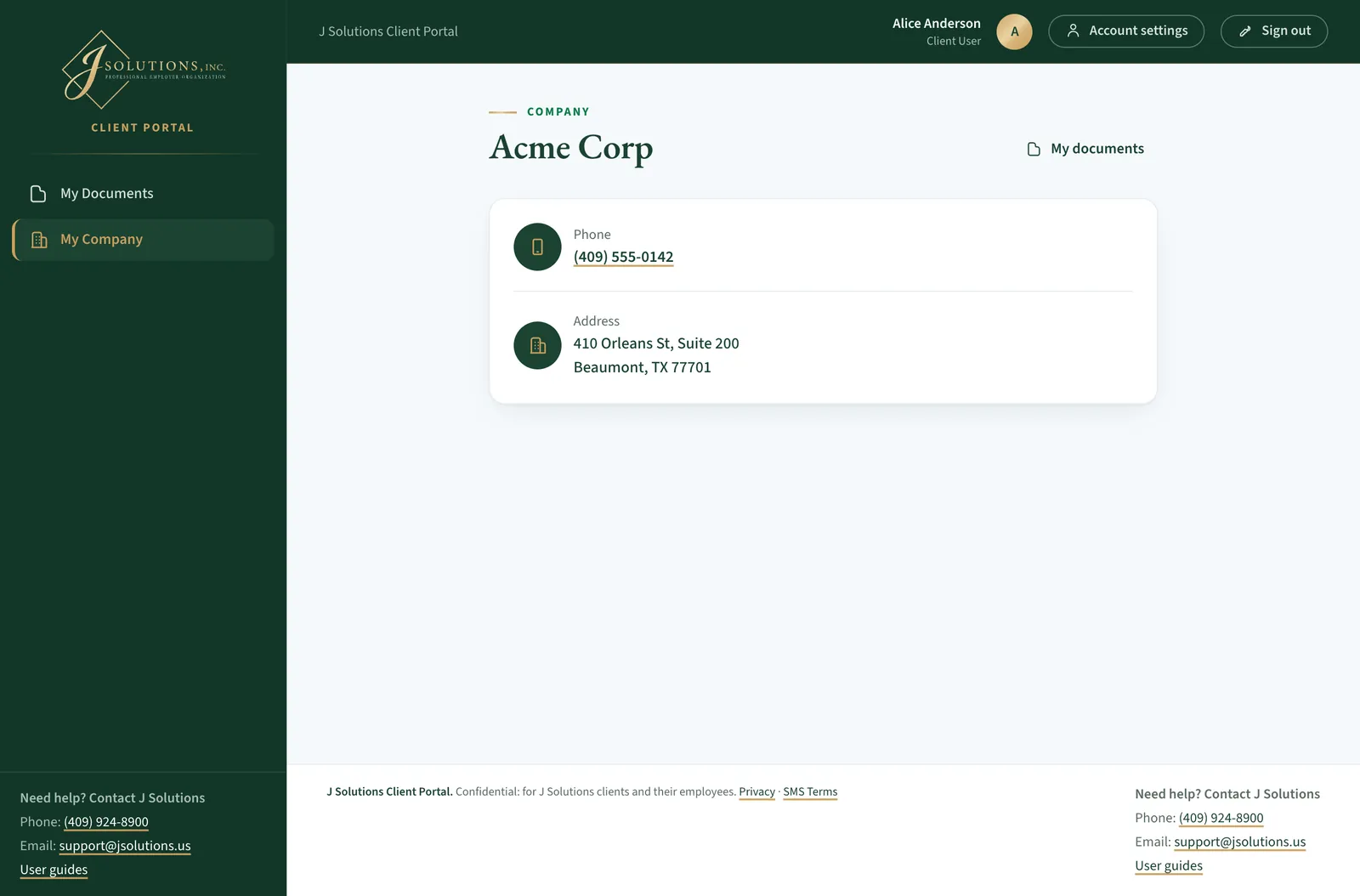
My Company
My Company in the menu shows the phone number and address J Solutions has on file for your company.
- If your account covers several companies, the menu says My Companies and opens Your companies, a list of them, first. Click a company's name to open its page.
- Your documents and, if you send payroll, your Payroll page cover all of those companies.
- Something out of date? Email support@jsolutions.us and J Solutions will update it.
Your account · Step 11 of 20
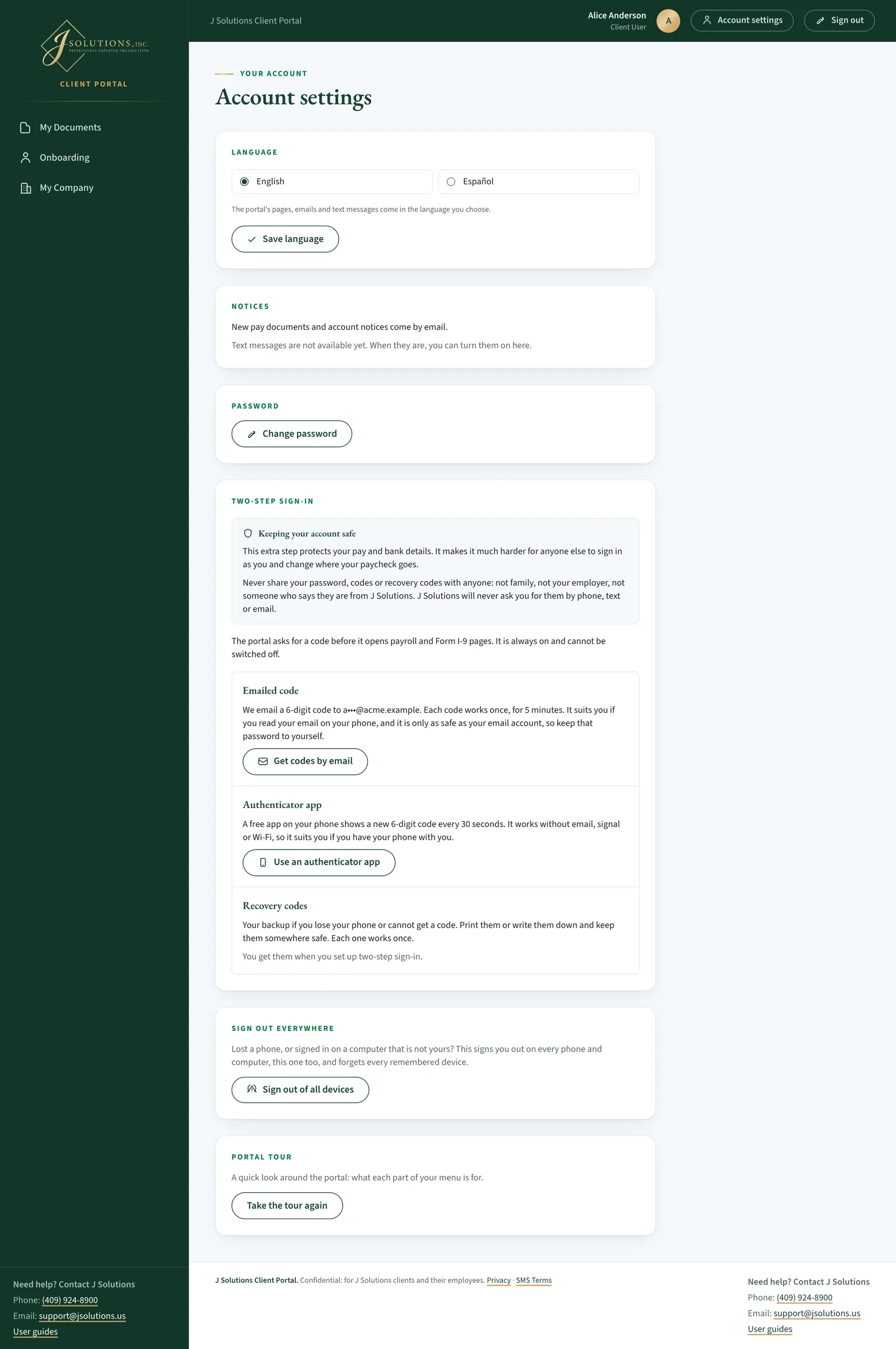
Account settings
Account settings is at the top right on a computer, or in the menu behind the round button with your initial on a phone.
- Language: choose English or Español and click Save language.
- Notices: new pay documents and account notices come by email. Text messages are not available yet; when they are, you can turn them on here.
- Password: Change password.
- Two-step sign-in says why the extra step matters and when the portal asks for a code (before payroll and Form I-9 pages; it is always on). Below, each way you may use, with a short note on when it suits you; the one you use now is marked In use.
- Emailed code (if your company allows it) and Authenticator app: click Get codes by email or Use an authenticator app on the other one to switch. You first enter a code, as a security check; the old way keeps working until the new one is set up.
- Recovery codes: your backup if you lose your phone, with how many you have left. New recovery codes replaces them (the old ones stop working).
- Sign out of all devices signs you out on every phone and computer, this one too. Use it if you lose a phone or signed in on a computer that is not yours.
- Portal tour: click Take the tour again to see the first-visit tour again.
- Sign out is next to Account settings.
Good to know: For your security, you are signed out after 60 minutes without activity (30 minutes once you have opened My Pay, Payroll or a Form I-9 Section 2). Two minutes before, a box asks if you want to Stay signed in.
Payroll · Step 12 of 20
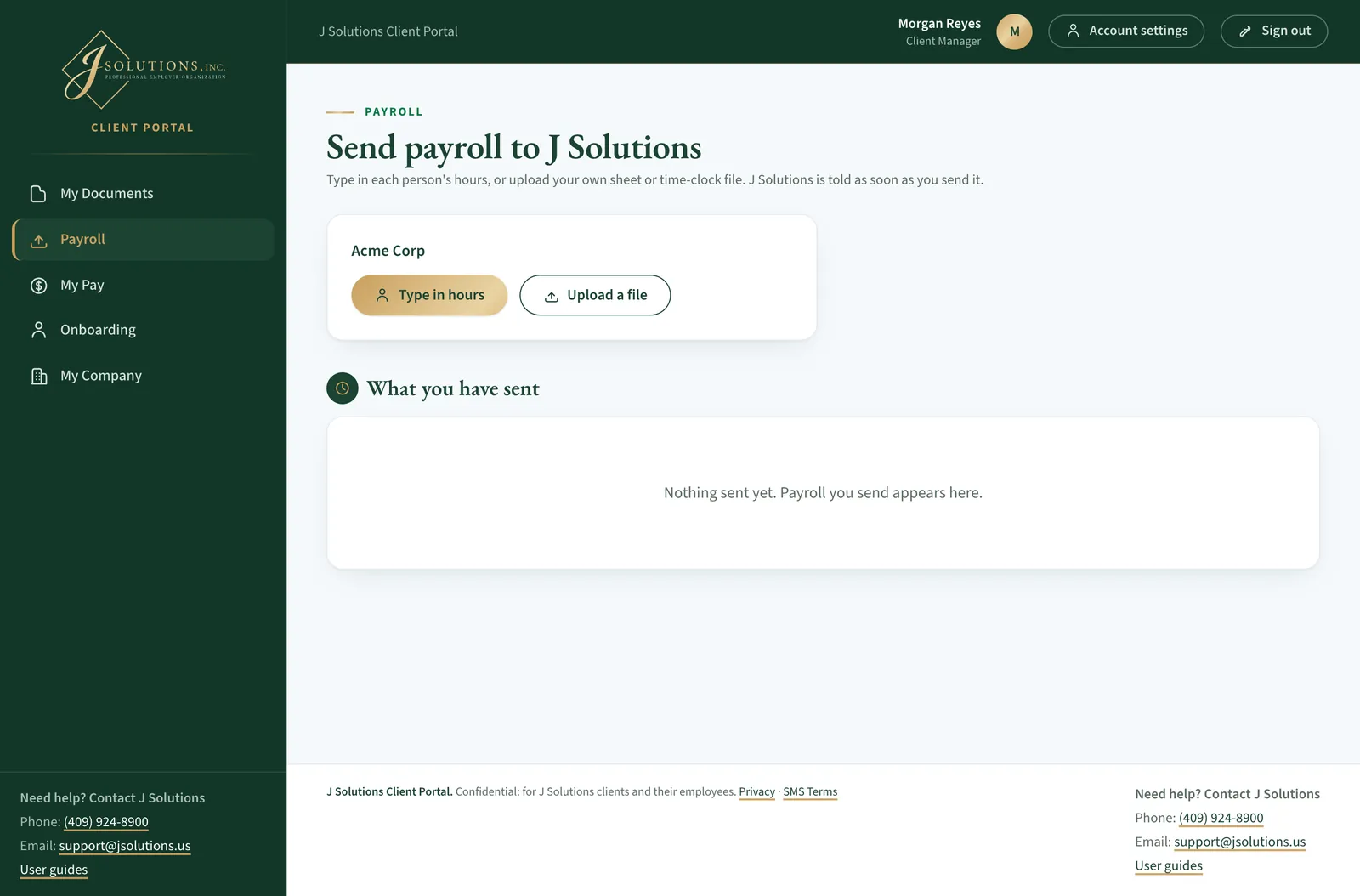
Send payroll to J Solutions
If your company sends its payroll through the portal, J Solutions turns it on for the people who send it, and Payroll appears in their menu. Each pay period, send it before your company's cut-off.
- Payroll is protected with two-step sign-in. The first time, the portal asks how you want to get your codes: by email, or from an authenticator app on your phone (if your company has switched emailed codes off, the app). The Employee guide shows those screens. After that, it asks for the 6-digit code once each time you sign in.
- Each of your companies has its own card with two buttons: Type in hours, or Upload a file to send your own sheet, a time-clock export, a PDF or a clear photo of the timesheet (Excel, CSV, PDF, JPG, PNG or HEIC, up to 20 MB).
- What you have sent lists every payroll sent for your companies, by anyone at your company, newest first.
- Before each cut-off, J Solutions emails a Payroll reminder with a Send payroll button. No reminder comes once payroll for that period has been sent.
Good to know: Only people J Solutions has set up to send payroll see this page. If you should send payroll and do not see it, contact J Solutions.
Payroll · Step 13 of 20
Type in hours
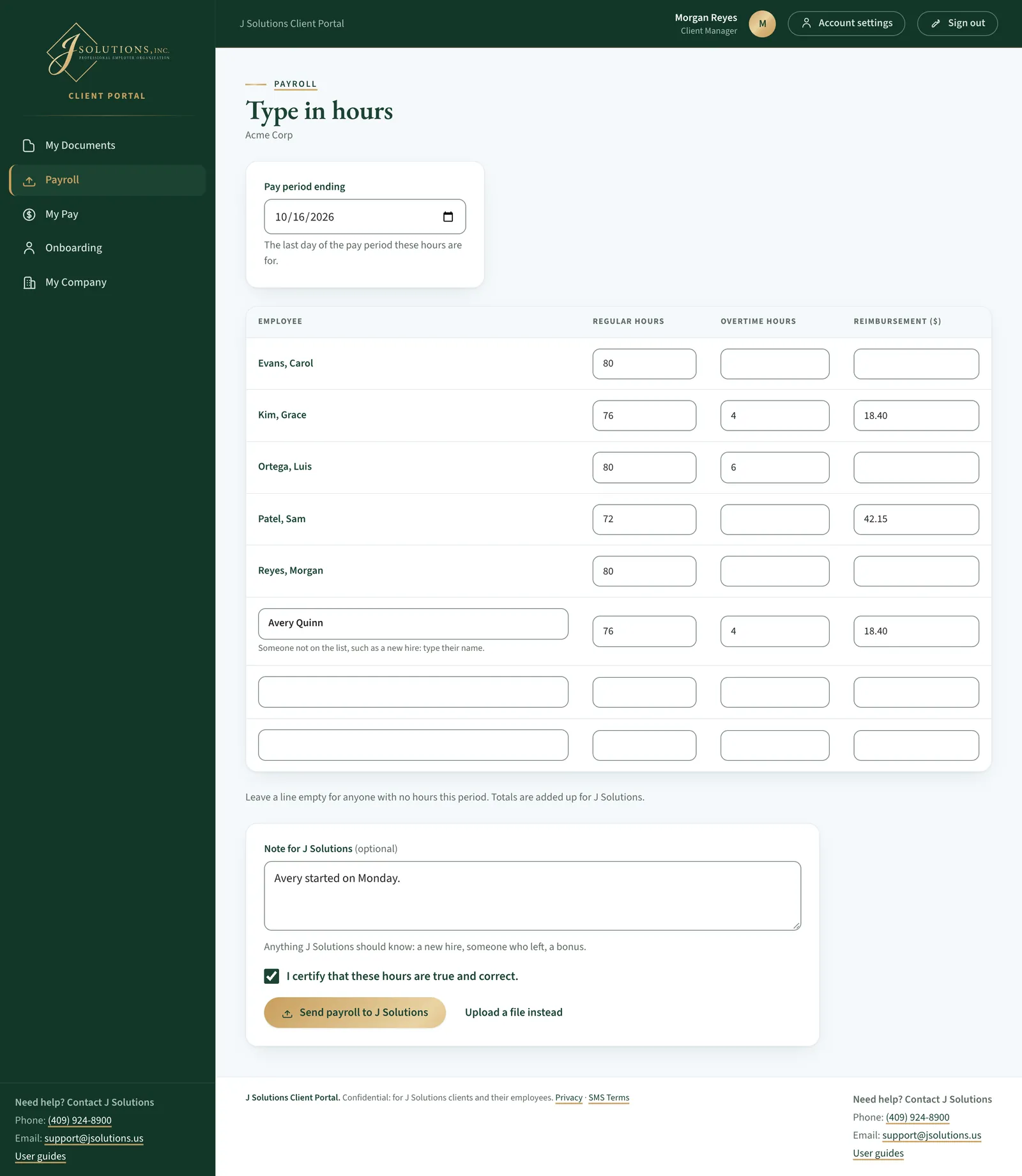
Type in hours lists the people on your company's list in the portal, one line each.
- Enter Pay period ending: the last day of the pay period.
- Fill in Regular hours, Overtime hours and Reimbursement ($) for each person. Leave a line empty for anyone with no hours this period.
- Someone not on the list, such as a new hire? Type their name on one of the empty lines at the bottom.
- Add a Note for J Solutions if needed (a new hire, someone who left, a bonus), tick the box to certify the hours, and click Send payroll to J Solutions.
- To upload a file instead, click Upload a file instead. The file page asks for the same pay period, note and certification.
Good to know: J Solutions is told as soon as you send it. Totals are added up for J Solutions.
Payroll · Step 14 of 20
What you sent
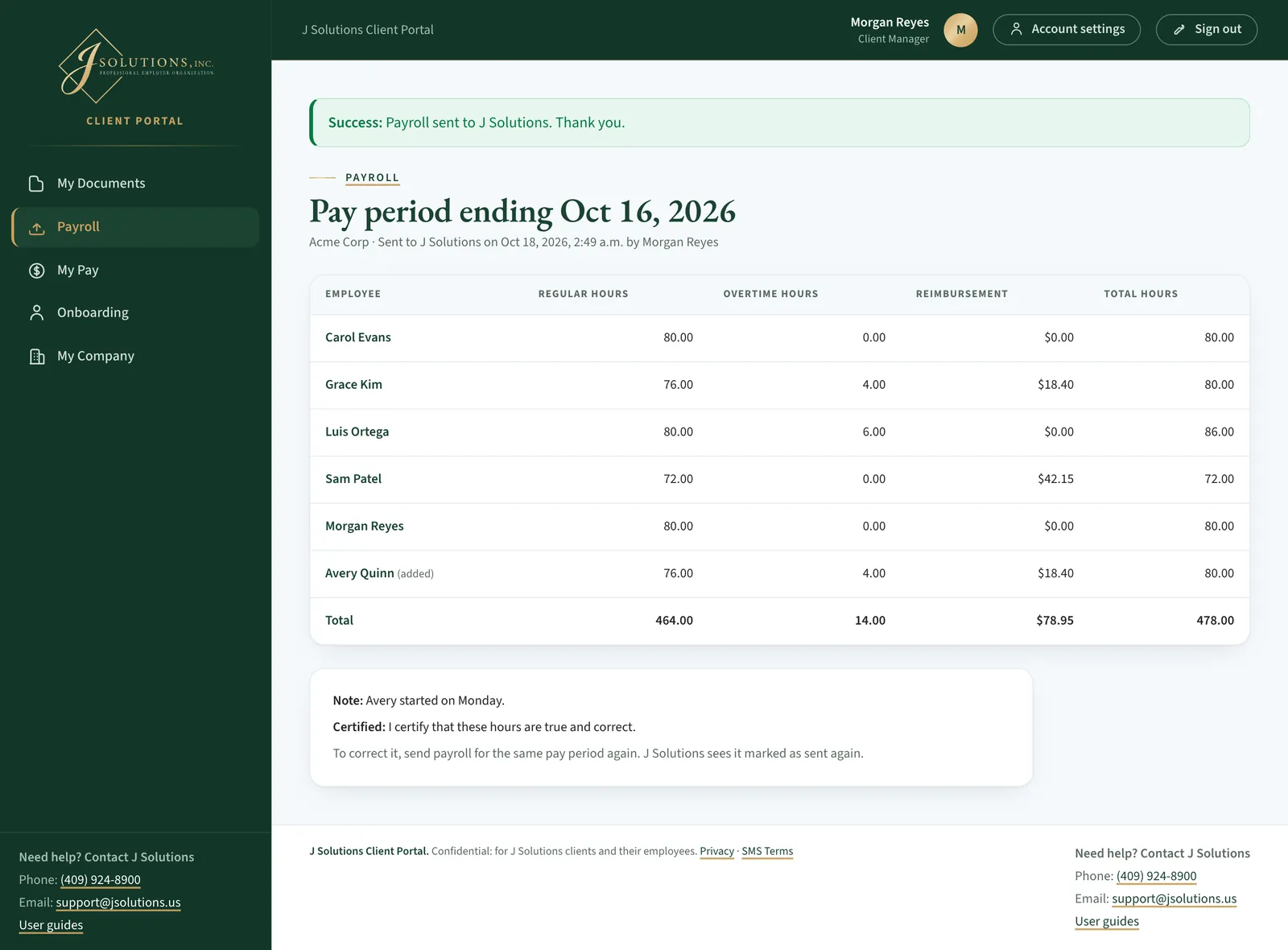
After you send it, the portal shows what reached J Solutions: the pay period, when it was sent and by whom, and each person's hours with the totals, or the file you sent.
- Nothing on this page can be changed. To correct a payroll, send payroll for the same pay period again. J Solutions sees it marked as Sent again.
- Open any earlier payroll from What you have sent with View.
For managers · Step 15 of 20
The manager's view
Client managers and client users see their company's documents plus an Onboarding page for their new hires.
- My Pay is for your own pay stubs and W-2s, if you are on the J Solutions payroll. Only you see them, never those of the people you manage. From My Pay you can also update your own Form W-4 or direct deposit. The Employee guide shows how.
- J Solutions may also email you a Yes or No question about a test deposit to your bank account. The Employee guide covers that too.
For managers · Step 16 of 20
Your new hires' paperwork
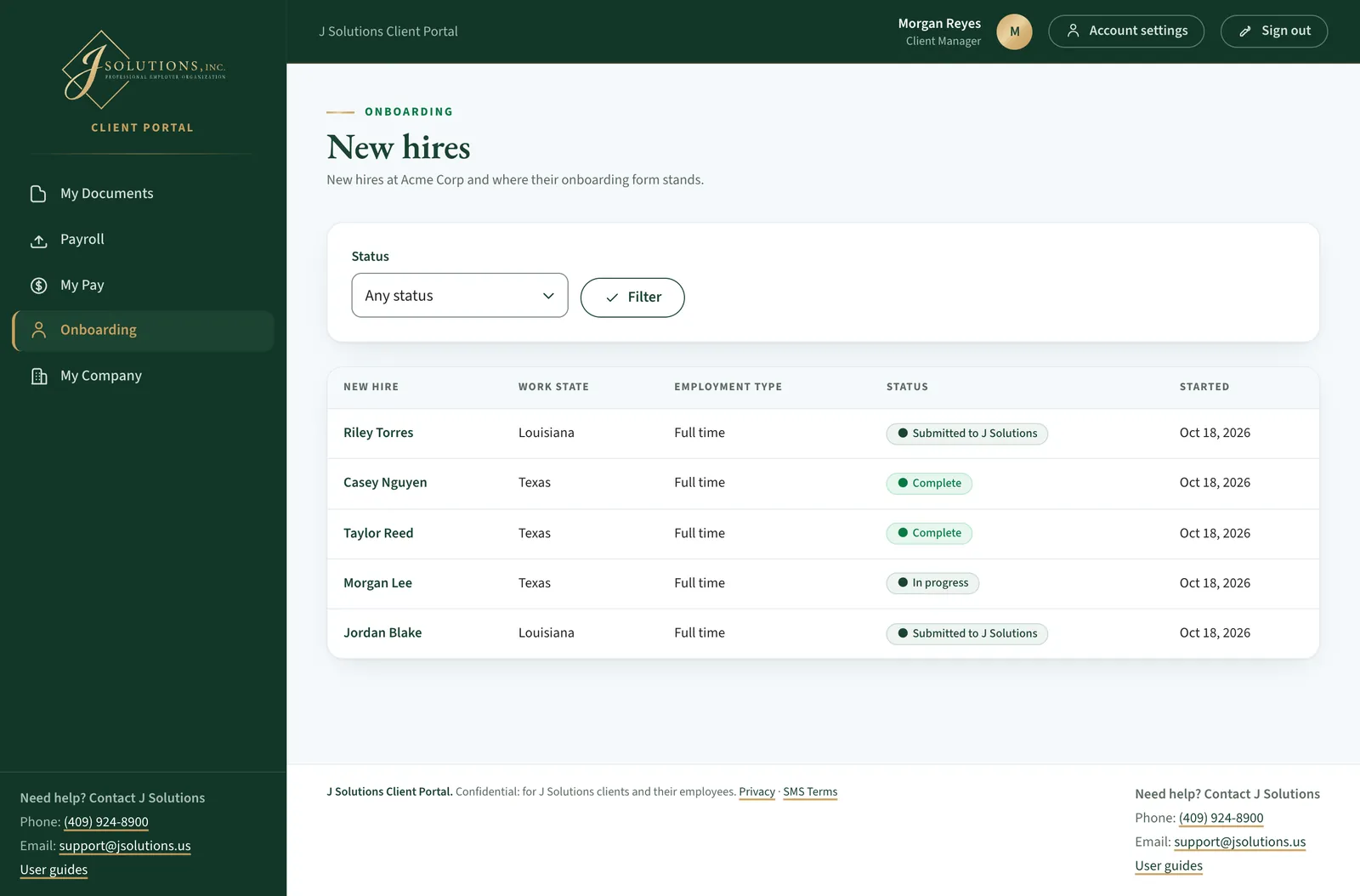
Onboarding opens New hires: each new hire whose onboarding form was sent, by you, a colleague or J Solutions, with their work state, employment type, status and the date it was started.
- Send an onboarding form sends a new hire theirs, at any hour: choose the company, where they work and live, the employment type, their name, email and language, then click Send the onboarding form. When they sign, their employee portal account is set up too.
- Not sent yet: J Solutions has not sent the link yet. Link sent: the new hire has the link but has not finished. Link expired: open their page and click Resend the onboarding link.
- In progress: they sent their details, and documents still wait for their signature. Needs correction: J Solutions sent it back to them to fix something.
- Submitted to J Solutions: they signed, and J Solutions is checking it. Complete: J Solutions approved it. Cancelled: it was stopped.
- Choose a Status and click Filter to see who still needs a nudge.
For managers · Step 17 of 20
One new hire's packet
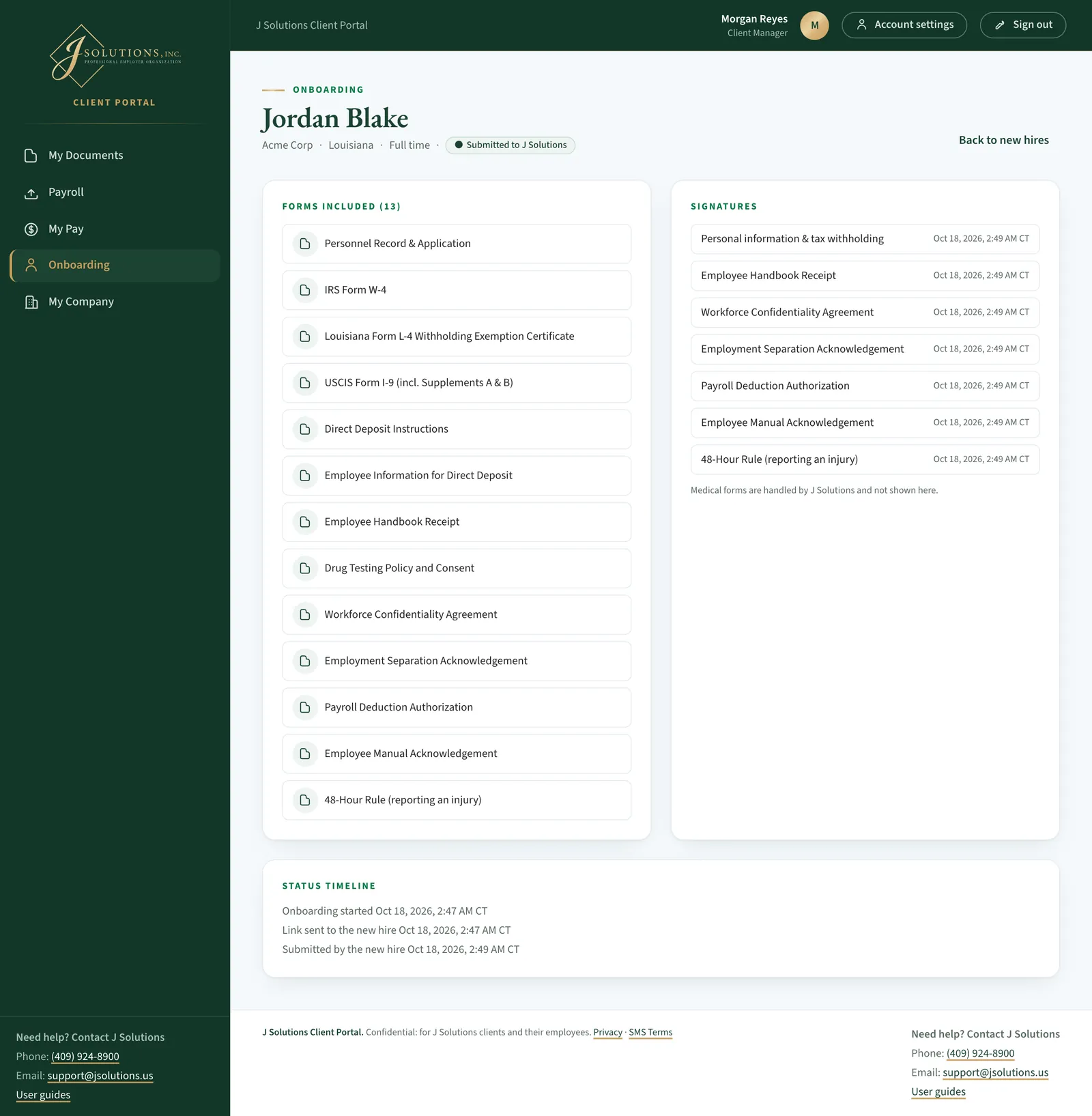
Open a new hire to see the forms included, which were signed and when, and a timeline of each step.
- You see progress only. Personal details such as Social Security numbers and bank accounts are never shown to managers.
- Any medical forms are handled by J Solutions and not shown here.
For managers · Step 18 of 20
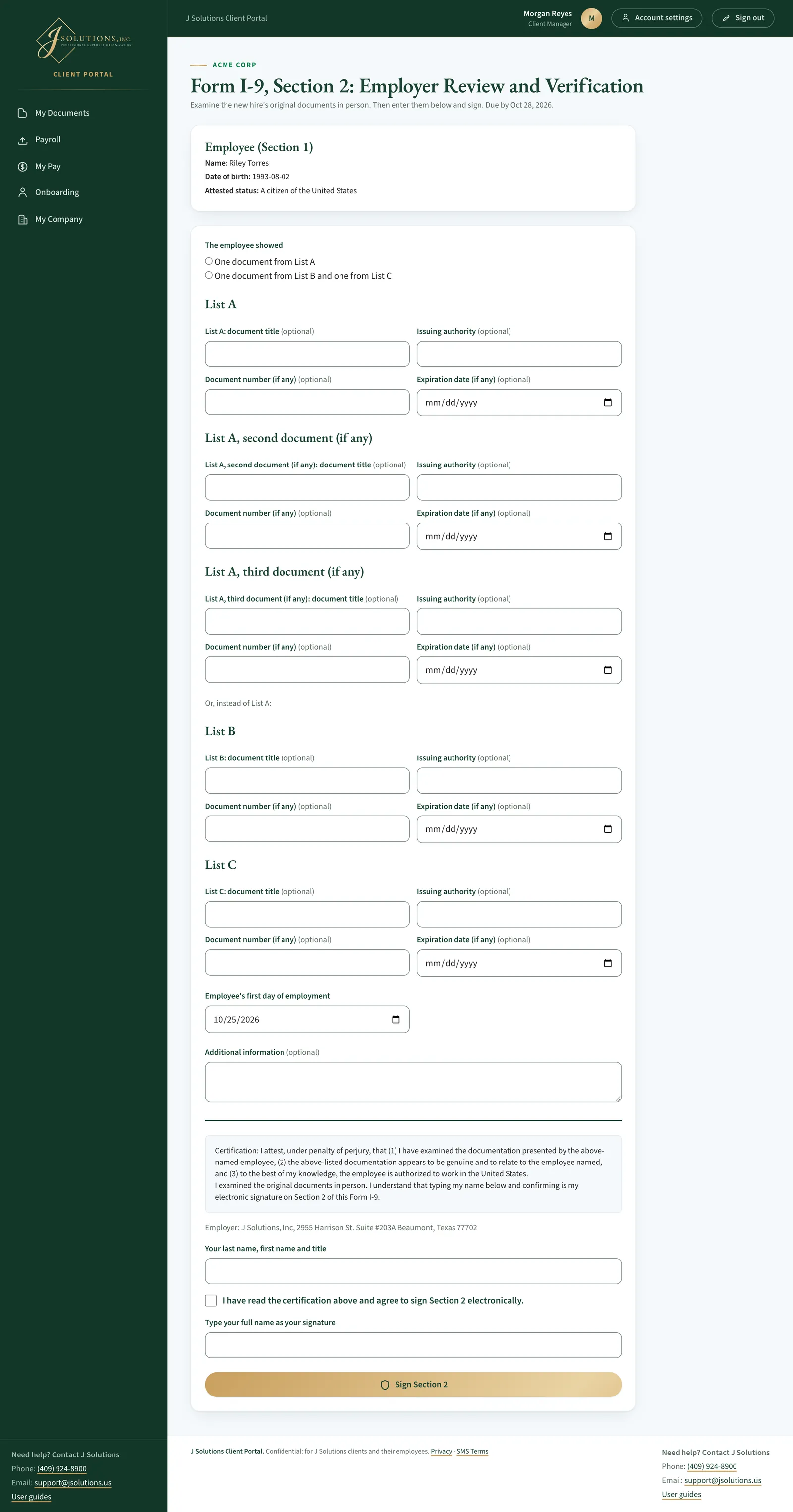
Form I-9, Section 2
J Solutions may ask you to complete Section 2 of a new hire's Form I-9. You get an email, "Form I-9: please examine a new hire's documents", with a link to the form.
- Look at the new hire's original documents in person first, on or soon after their first day. The page says when it is due.
- Follow the link and sign in. Until you sign it, your home page (My Documents) also shows Form I-9, Section 2: waiting for you, with a link, and so does that new hire's page under Onboarding. The page asks for your two-step sign-in code; the first time, it asks you to set two-step sign-in up.
- Under The employee showed, choose One document from List A, or One document from List B and one from List C, and enter each document's details.
- Check Employee's first day of employment, enter Your last name, first name and title, tick the box, draw your signature in the box, type your full name below it and click Sign Section 2. Both are needed.
Good to know: Only the person J Solutions asked can open the form. Client users can be asked too, not only managers.
On your phone · Step 19 of 20
Works on your phone
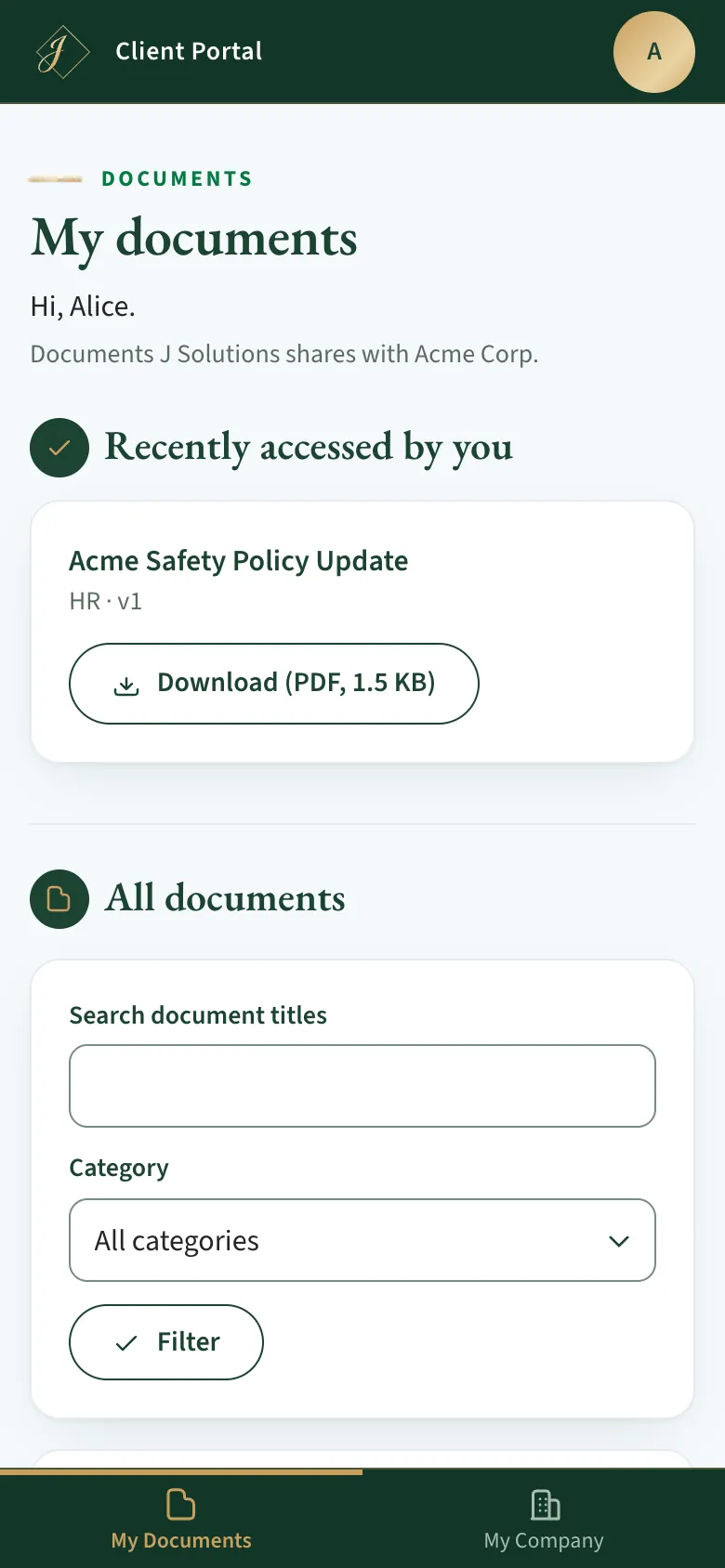
The portal works in any phone browser. The menu moves to a bar at the bottom of the screen, and documents stack for easy tapping.
- If your menu has more than four parts, the last ones are under More.
- The round button with your initial, top right, opens Account settings, Sign out and the help block.
- Every page has Need help? Contact J Solutions: tap the phone number to call, or the email address to write.
- To open it like an app, add it to your phone's home screen. The first time you open the portal on a phone, a box shows how (on an iPhone: Share, then Add to Home Screen); Got it or Not now hides it.
Help · Step 20 of 20
User guides
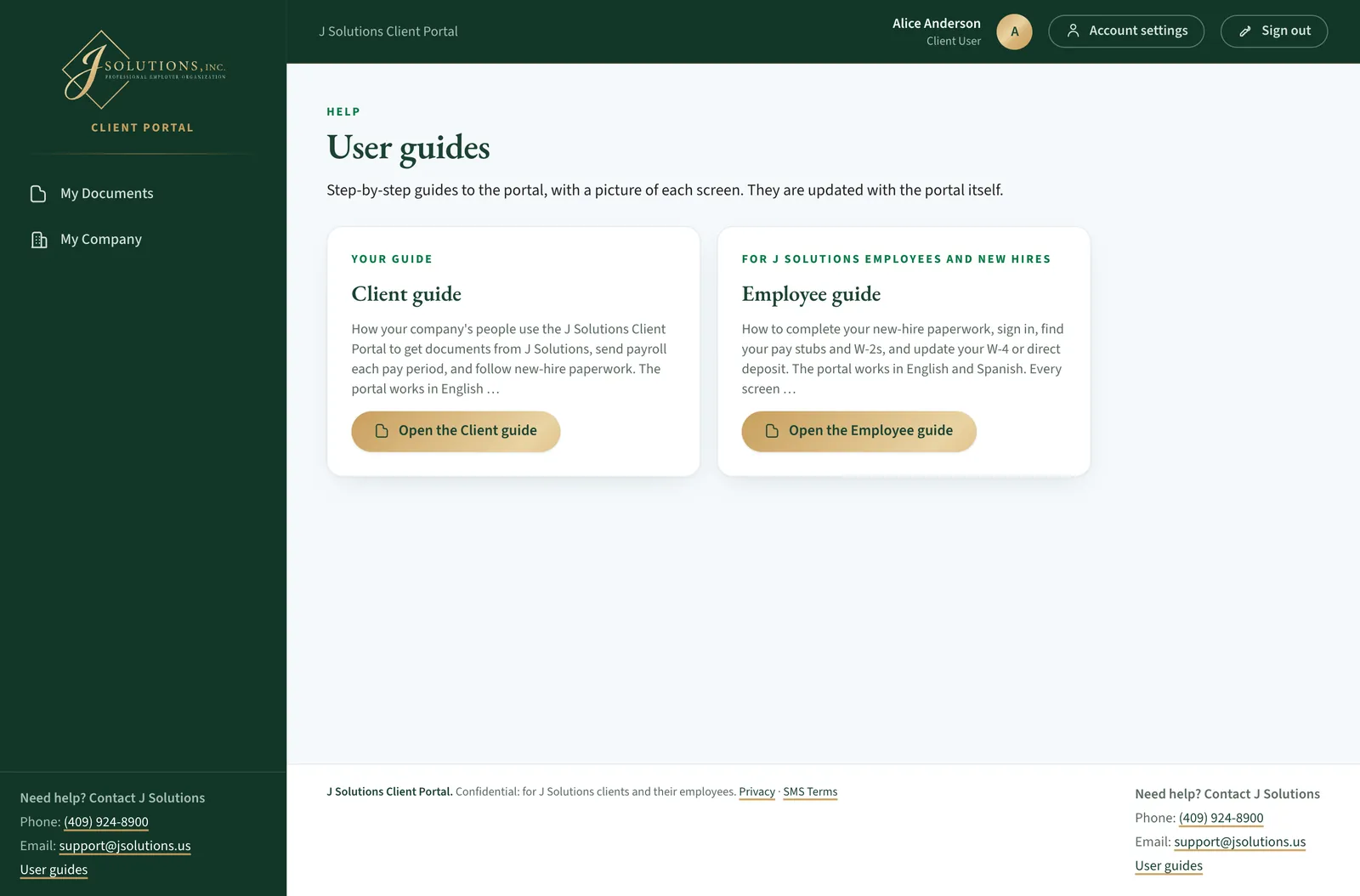
Every page has a Need help? Contact J Solutions block with J Solutions' phone number, email address and a User guides link.
- User guides opens this guide and the Employee guide. Your guide marks the one written for you.
- You can read them without signing in, from the sign-in page too, for example if you are stuck on your password.
- Tap or click a screenshot to see it full size.
Need help?
- Portal address: https://portal.jsolutions.us
- Questions: support@jsolutions.us or (409) 924-8900. The same details are in the Need help? block on every page.
- Never share your password. J Solutions will never ask you for it.